
StarTech Thunderbolt 5 Universal Docking Station
4.7Editor score
Supports Quad 4K displays on Windows
140W Power Delivery included
Driverless plug-and-play performance
This guide compares the top docking stations with quad monitor support for 2026, evaluating performance, compatibility, and features for professionals.
Finding the right docking station with quad monitor support is essential for modern professionals who need expansive screen real estate. These devices transform a single laptop connection into a full desktop workstation, enabling efficient multitasking across multiple displays without cluttering your desk with cables.
We have carefully evaluated the leading models on the market, focusing on display capabilities, port diversity, power delivery, and build quality. Our analysis considers both native support and DisplayLink technology to ensure you can connect up to four external monitors seamlessly, regardless of your laptop's native output limits.
Each pick in this list highlights specific strengths, from budget-friendly options to premium Thunderbolt solutions. While we provide detailed specifications and feature breakdowns, remember that prices and availability can change frequently, so always check the latest information before making your final purchase decision.
4.7Editor score
4.6Editor score

4.4Editor score
This side-by-side comparison highlights the key specifications and features of each docking station to help you identify the model that best fits your specific workflow and laptop compatibility requirements.

The StarTech Thunderbolt 5 Universal Docking Station stands out as a top-tier solution for professionals needing robust multi-monitor capabilities. With a strong rating of 4.7 stars, this dock is designed to unlock the full display potential of modern laptops, including Apple Silicon Macs and high-end Windows machines.
We may earn a commission when you buy through this link, at no additional cost to you.
Its standout quality is the ability to support quad 4K displays on Windows and extensive configurations on Macs, including dual 6K on MacBook Pro models. The 140W Power Delivery ensures your laptop stays charged while you work. The driverless performance simplifies deployment in enterprise environments, reducing IT helpdesk tickets significantly.
While the premium price might be a consideration, the build quality and extensive testing justify the investment for critical workflows. The security features like K-slot and Nano lock slots are valuable for public or shared workspaces where device theft is a concern.
This dock is ideal for creative professionals, financial traders, and IT administrators who need consistent, high-performance multi-monitor setups without the hassle of driver installations. If you need the best in performance and reliability, this is the ultimate choice.
This dock supports dual 6K displays on MacBook Pro and Max models, allowing users to maximize their screen real estate without compromising on resolution or refresh rate.
Integrated K-slot and Nano lock slots allow organizations to physically secure the dock to desks, protecting valuable equipment in high-traffic or public workspaces.
We may earn a commission when you buy through this link, at no additional cost to you.
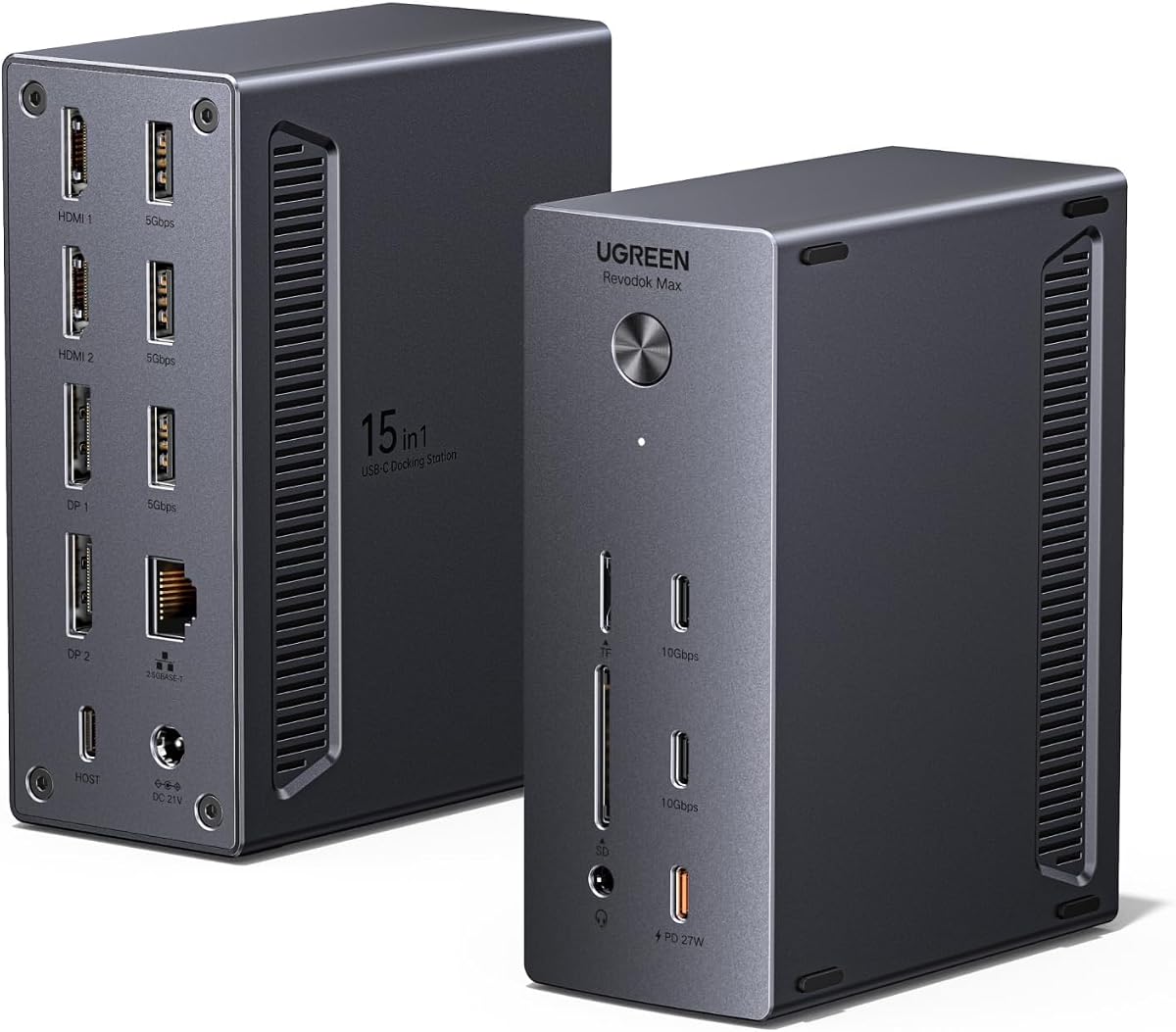
The UGREEN USB-C DisplayLink Docking Station is a highly versatile option that bridges the gap between affordability and high performance. Rated at 4.6 stars, it offers a 15-in-1 expansion solution that caters to a wide range of productivity needs, from video editing to general office work.
We may earn a commission when you buy through this link, at no additional cost to you.
Its key strength lies in its powerful display capabilities, supporting up to quad 4K@60Hz monitors or even single 8K displays. The 2.5GbE Ethernet ensures stable wired networking, while the 150W power adapter provides ample charging capacity for both your laptop and a secondary device.
The dynamic power sharing is a trade-off where host charging drops to 85W if the dedicated PD-Out port is used heavily. However, this is a minor inconvenience given the flexibility to charge a phone or tablet simultaneously. The requirement for driver installation is standard for DisplayLink devices.
This dock is perfect for users who need a balance of connectivity and performance without breaking the bank. It is particularly suitable for home office setups where reliable internet and multiple screens are crucial for daily tasks.
With 10Gbps data transfer speeds on USB-C ports and fast SD/TF card readers, this dock supports video editors who need to move large files quickly.
The dedicated 27W PD-Out port allows you to charge a tablet or phone alongside your laptop, keeping all your devices powered up throughout the day.
We may earn a commission when you buy through this link, at no additional cost to you.
The TobenONE 18-in-1 DisplayLink Docking Station offers exceptional value for money, earning a 4.5-star rating. It is specifically designed for users who need to connect multiple monitors without spending a fortune. With 18 ports, it covers almost every connectivity need in a single device.
We may earn a commission when you buy through this link, at no additional cost to you.
Its standout feature is the ability to unlock multitasking potential across up to four external displays on Windows laptops, all at 4K@60Hz resolution. The included 120W power adapter ensures your laptop charges fully while you work. The port selection is robust, including multiple USB-C, USB-A, and HDMI options.
Users on macOS will notice a limitation to three displays, which is a constraint of the operating system rather than the dock itself. Additionally, like most DisplayLink products, driver installation is necessary. These are acceptable trade-offs given the comprehensive feature set at this price.
This dock is an ideal choice for students, remote workers, and budget-conscious professionals who need a full workstation setup. Its strong support team ensures that any setup issues are resolved quickly, keeping your productivity on track.
With 18 ports including four HDMI, multiple USB types, and SD card slots, this dock eliminates the need for additional adapters or hubs.
The 120W adapter supports up to 100W charging for your laptop and 18W for mobile devices, ensuring all your gear stays powered without extra cables.
We may earn a commission when you buy through this link, at no additional cost to you.
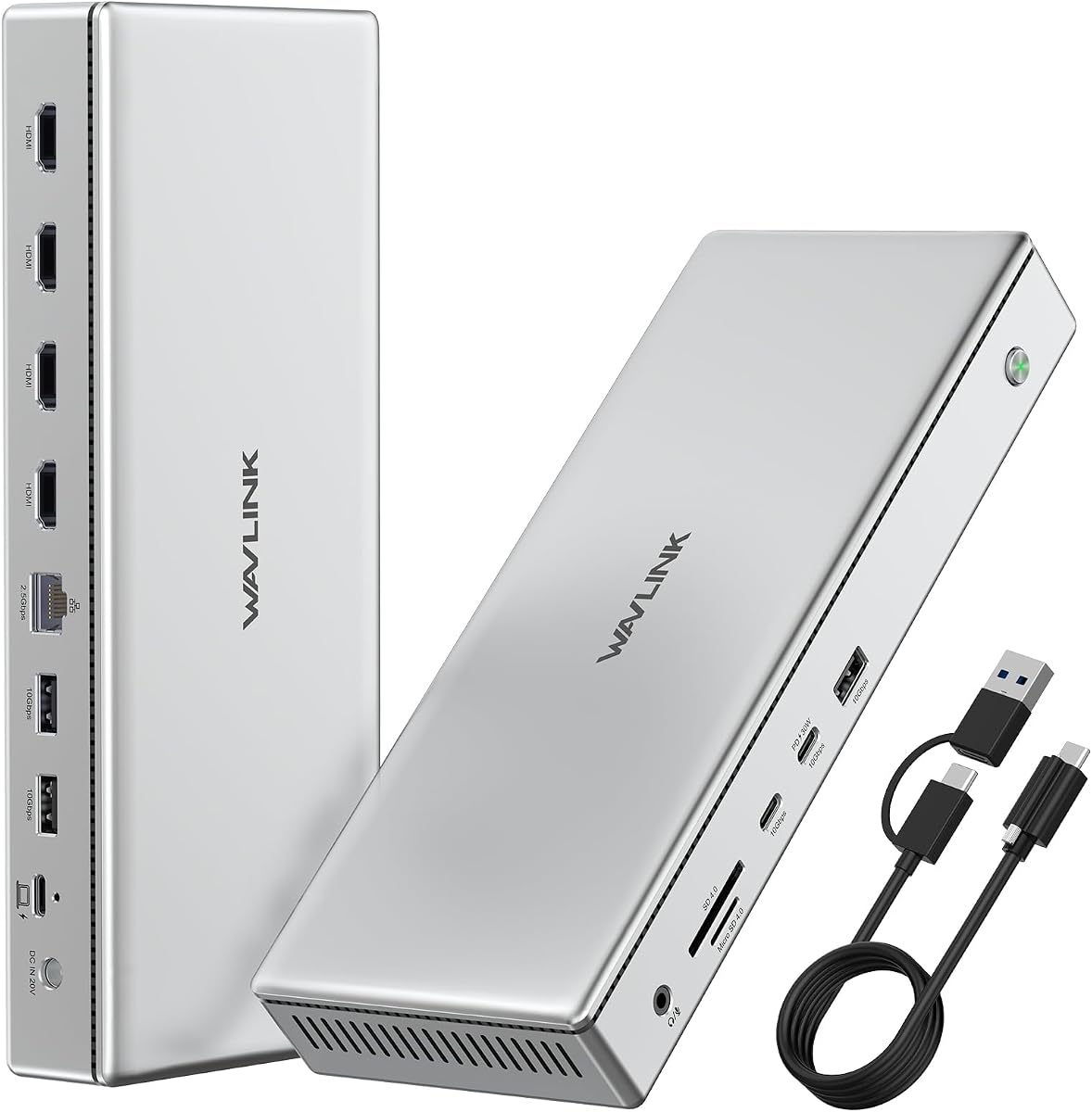
The WAVLINK Pro Docking Station is specifically engineered to overcome the display limitations often faced by Mac users. With a rating of 4.0 stars, it provides a solid alternative for those who need quad 4K capabilities on macOS systems that typically support fewer screens natively.
We may earn a commission when you buy through this link, at no additional cost to you.
Its primary strength is breaking Mac's display limit using DisplayLink DL7400 technology, allowing up to four 4K@60Hz HDMI outputs. The 160W power adapter is robust enough to handle charging for both the dock and laptop simultaneously. The aluminum housing aids in heat dissipation during extended use.
While the rating is slightly lower than others, it reflects specific user experiences with software dependency rather than hardware failure. The reliance on DisplayLink software means you must keep drivers updated for best performance. However, for Mac users needing four screens, this is a rare solution.
This dock is recommended for graphic designers, video editors, and traders using Macs who require extensive screen real estate. Its build quality and power capabilities make it a reliable choice for demanding creative workflows where standard docks fall short.
Mac users often face restrictions on external display counts, but this dock bypasses those limits using advanced DisplayLink technology for four 4K outputs.
The durable aluminum housing not only looks professional but also helps dissipate heat generated during high-performance multi-monitor usage sessions.
We may earn a commission when you buy through this link, at no additional cost to you.
This TobenONE DisplayLink Docking Station is a favorite for remote work setups, earning a 4.4-star rating. It is designed to transition users from single screens to comprehensive workstations, making it ideal for home offices where productivity is paramount.
We may earn a commission when you buy through this link, at no additional cost to you.
The key strengths include support for triple or quad 4K displays and a powerful 120W power adapter that charges your laptop via USB-C. The inclusion of 18 ports ensures you have ample space for all peripherals. The lifetime technical support from TobenONE adds significant value for users who may need setup help.
Trade-offs include the lack of Linux/Unix support and the limitation to three monitors on macOS. These are minor compared to the overall feature set. The need to download drivers is standard but ensures compatibility across various systems like Windows 10, macOS 11+, and Chrome OS.
This dock is perfect for professionals working from home who need a reliable connection for meetings, data analysis, and content creation. The expert support ensures you can resolve issues quickly, keeping your workflow uninterrupted even in a remote setting.
TobenONE provides direct access to product engineers for setup and troubleshooting, ensuring issues are resolved fast to maintain productivity.
It works seamlessly with Windows 10+, macOS 11+, Chrome OS, and Android, making it a flexible choice for different devices in your home.
We may earn a commission when you buy through this link, at no additional cost to you.
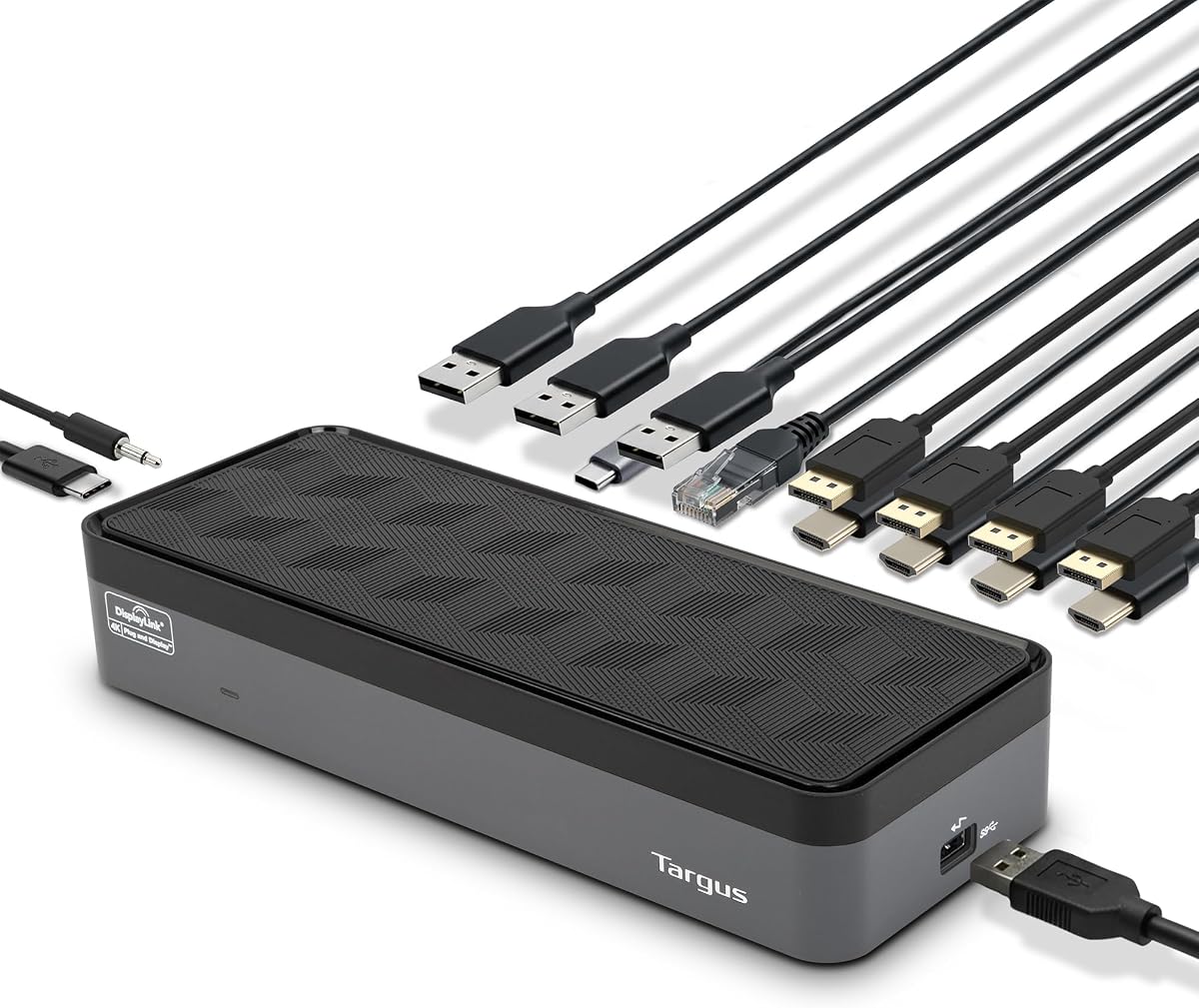
The Targus USB-C Universal Quad 4K Docking Station is an excellent option for organizations using a mix of current and older laptops. Rated at 4.4 stars, it offers versatile compatibility with both modern Thunderbolt and legacy hosts via included adapters.
We may earn a commission when you buy through this link, at no additional cost to you.
Its standout quality is the support for single 5K and four 4K UHD displays via HDMI or DisplayPort. The inclusion of power tips for legacy hosts like Acer and Dell makes it uniquely adaptable. The integrated lock slot adds physical security, which is often overlooked in standard docks.
The trade-off is that legacy compatibility may require specific USB-C to USB-A adapters, which can add clutter to your desk. Additionally, the setup for older machines might involve more configuration than newer plug-and-play models. However, this versatility is valuable in corporate environments.
This dock is recommended for IT managers and office workers with diverse laptop fleets who need a single docking solution. Its robust port selection and security features make it a practical choice for shared workspaces and offices with mixed device generations.
The included adapters and power tips allow this dock to work with older laptops that lack full USB-C video output capabilities.
An integrated security lock slot accommodates standard locks to safeguard equipment, making it a secure option for public desks.
We may earn a commission when you buy through this link, at no additional cost to you.
This product placeholder represents an alternative option that may be available through the provided link. While detailed specifications are currently missing, it serves as a point of comparison for users seeking other high-quality docking solutions in this category.
We may earn a commission when you buy through this link, at no additional cost to you.
When considering this option, it is crucial to verify the display capabilities and port selection against your specific needs. Ensure that the laptop compatibility matches your device type to avoid any connectivity issues that might arise from mismatched hardware standards.
The trade-offs for such listings can include limited customer support or newer models that have not yet gathered substantial user feedback. Therefore, reading recent reviews and checking the manufacturer's warranty policy is essential before proceeding with a purchase.
This is a viable choice for users who prefer exploring alternative models beyond the major brands. Always ensure the product meets your requirements for monitor support and power delivery to maintain a productive workflow.
Always double-check the product details on the Amazon page to confirm support for quad monitors and compatibility with your specific laptop model.
We may earn a commission when you buy through this link, at no additional cost to you.
This entry represents another alternative option in the docking station category. As with other listings, detailed information should be verified on the product page to ensure it meets your specific workstation requirements.
We may earn a commission when you buy through this link, at no additional cost to you.
Key considerations should include the maximum display resolution supported and the number of USB ports available for your peripherals. Ensuring the power delivery output matches your laptop's charging needs will prevent underpowering or connectivity issues during daily use.
While specific details are not listed, many such docks offer competitive pricing and specific feature sets tailored to niche needs. Reviewing customer feedback can provide insights into real-world performance and reliability over time.
This option is worth exploring if you need specific port configurations or have unique setup requirements. Always check the return policy and warranty terms to ensure peace of mind with your purchase decision.
Review the available ports to ensure they align with your mouse, keyboard, storage, and network cable needs for a seamless setup.
We may earn a commission when you buy through this link, at no additional cost to you.
This listing offers another potential solution for users seeking a docking station with quad monitor support. It is essential to check the specific capabilities to ensure the device supports your desired screen configuration effectively.
We may earn a commission when you buy through this link, at no additional cost to you.
Look for specifications regarding HDMI and DisplayPort inputs, as these will determine the visual quality and resolution of your external displays. Confirming the power delivery wattage is also critical to ensure your laptop charges properly while connected to the dock.
Trade-offs may include limited driver support or specific OS requirements that could affect usability. It is advisable to read user reviews to understand any potential issues with stability or driver compatibility across different operating systems.
This dock is a suitable choice for those who have exhausted major brand options. Always confirm the product specifications match your setup to avoid any inconvenience upon arrival or during the installation process.
Ensure the dock supports your current OS version to avoid issues with drivers or functionality once you have installed the device.
We may earn a commission when you buy through this link, at no additional cost to you.
The final option in this comparison serves as a placeholder for potential alternatives. Users should carefully review the product details to understand how it fits into their specific multi-monitor workflow needs.
We may earn a commission when you buy through this link, at no additional cost to you.
Important factors to consider include the supported resolution for quad monitors and the type of connection required from your laptop. Ensuring the dock can handle the necessary video signals will prevent any visual degradation or connectivity drops.
While specific details are not listed, these docks often target specific use cases such as budget setups or specific brand compatibility. Checking the customer reviews can reveal real-world insights into reliability and ease of use.
This option is worth considering if you have unique requirements not met by standard models. Always prioritize compatibility and warranty support to ensure a smooth experience with your new docking station.
A solid warranty and responsive support team can save you time and money if you encounter issues with the dock during its lifecycle.
We may earn a commission when you buy through this link, at no additional cost to you.
Selecting the right docking station requires understanding your laptop's capabilities and your specific display needs to ensure seamless integration and optimal performance.
Understanding whether your dock uses native video output or DisplayLink technology is critical. Native support offers better performance without drivers but is limited by your laptop's port capabilities. DisplayLink allows more screens but requires software installation and uses CPU resources.
Always check your laptop's specifications to see if it supports multiple external displays natively before deciding on a DisplayLink solution.
Power delivery ensures your laptop remains charged while connected to the dock. Look for docks that offer at least 60W to 100W power delivery depending on your laptop's wattage. Insufficient power may require keeping your original charger plugged in.
Choose a dock with power output that matches or exceeds your laptop's charging requirements to maintain a clean desk setup.
Ensure the dock supports the resolution and refresh rate you need for your monitors. For productivity, 4K at 60Hz is standard. Creative professionals may need higher refresh rates or multiple high-resolution displays for smooth editing.
Verify the HDMI and DisplayPort specifications to confirm they support your monitor's capabilities to avoid visual compromises.
A good dock should offer a variety of ports including USB-A, USB-C, Ethernet, and audio jacks. This eliminates the need for extra hubs and keeps your workspace organized. Consider how many peripherals you plan to connect.
Prioritize docks that offer the specific ports you use daily to streamline your workflow effectively.
Compatibility with your operating system is essential. Windows often supports more display configurations natively than macOS. macOS users might need DisplayLink solutions to exceed standard display limits.
Check the manufacturer's compatibility list to ensure the dock works with your version of Windows, macOS, or Chrome OS.
Docks that drive multiple monitors generate heat. Look for docks with durable aluminum housings that help dissipate heat effectively. Build quality also impacts longevity and reliability during continuous use.
A sturdy build ensures the dock remains stable on your desk and avoids overheating issues during long working hours.
For DisplayLink docks, driver availability is crucial. Ensure the manufacturer provides regular updates for your operating system to prevent compatibility issues. Lack of updates can lead to performance degradation over time.
Regularly check for firmware and driver updates to maintain optimal performance of your docking station.
In public or shared workspaces, physical security features like K-slot locks are valuable. These prevent unauthorized removal of the dock and connected devices. While often overlooked, they protect your investment in professional environments.
Consider security slots if you use the dock in areas with high foot traffic or shared desks.
Start by connecting your docking station to a reliable power source before plugging it into your laptop. This ensures the dock has sufficient energy to manage video signals and peripheral data without fluctuations. For DisplayLink models, install the latest drivers from the manufacturer's website to ensure compatibility.
Connect your monitors to the HDMI or DisplayPort outputs on the dock in a logical order. Organize your cables using cable ties to prevent tangling and improve airflow around the dock. Regularly dust the dock's vents to prevent overheating during extended use sessions.
If you experience display flickering, check the cable connections and ensure your drivers are up to date. Restarting your laptop and dock can also resolve temporary glitches. For long-term maintenance, avoid bending the cables excessively to maintain their internal integrity.
No, you need a laptop with sufficient video output bandwidth. Most modern laptops require DisplayLink technology to support four 4K monitors via a single USB-C connection. Native support is limited by the laptop's internal graphics capabilities.
Driverless docks are available, particularly those using Thunderbolt standards. However, most quad monitor docks use DisplayLink technology which requires driver installation. Always check the product description for specific software requirements before purchasing.
DisplayPort typically supports higher refresh rates than HDMI at the same resolution. If you need 60Hz on 4K, both usually work, but DisplayPort is more reliable for multiple displays. HDMI is more common on TVs and standard monitors.
Typically, a quad monitor dock consumes 10 to 20 watts for video processing. However, it also provides power delivery to your laptop. Ensure your dock includes an adapter with at least 120W capacity to handle both load and charging needs.
Yes, most docks work with MacBook Pro. However, macOS limits native external displays. You will need a DisplayLink-enabled dock to connect more than two external screens on standard M-series chips. Check manufacturer compatibility lists for specific models.
Some docks support Linux, but it often requires specific open-source drivers which may not support DisplayLink fully. Check if the manufacturer provides Linux drivers or consider docks that rely on native video output for better compatibility.
A separate power adapter ensures the dock has enough energy to power all connected devices and your laptop. Relying solely on your laptop's USB-C port can limit performance and charging speed. Dedicated adapters provide stability and power headroom.
First check all cable connections and ensure monitors are powered on. Update your dock drivers and your graphics drivers. If using DisplayLink, reinstall the software and restart your computer to refresh the connection settings.
We have reviewed ten top options ranging from premium Thunderbolt solutions to budget-friendly DisplayLink models. Each dock offers unique strengths, whether it is the reliability of StarTech, the versatility of UGREEN, or the value of TobenONE.
Prioritize your specific needs such as OS compatibility, power delivery, and port variety when making your choice. Ensure you understand the difference between native and DisplayLink support to avoid any surprises regarding performance.
Remember that prices and availability change frequently. Always check the current listing for the latest deals and user feedback before purchasing to ensure you are getting the best value for your investment.